Activate the accounts
Who does this: the administrator first, then the technical contact. The Secretariat repairs anything that goes wrong.
Two people get an email, set a password, and sign in. When that does not happen, the fix is almost never to admit the organisation again.
The four messages ITS sends
Knowing which message you are looking at saves a lot of confusion, because they arrive at different times and do different things. None of them contains a password, a certificate, or any credential for your system.
| Subject line | What to do with it |
|---|---|
| Your AfCFTA ITS onboarding starts here: your organisation | Nothing. It confirms ITS accepted the onboarding. Wait for the next message. |
| Welcome to AfCFTA ITS — your account is ready | This is the one that lets you in. Follow the action in it. |
| Set your AfCFTA ITS password | Choose your password. The link is yours alone. |
| Reset your password | Use this when the password link expired or the password was forgotten. Note that this one carries no product name. |
Never forward one of these messages. The links are tied to one person. If a message reaches the wrong person, that is an account to be repaired, not a link to pass along — forwarding it puts someone into an account that will record their actions under another person's name.
Sign in for the first time
- Open the message with the subject Welcome to AfCFTA ITS — your account is ready and follow the action in it.
- Use the Set your AfCFTA ITS password message to choose a password.
- Go to the ITS portal and sign in. The address is on the Environments page.
It worked when you land in your organisation's workspace and can see the setup steps down the left-hand side. Those steps are the whole of the next three pages, in order, and they stay available once completed.
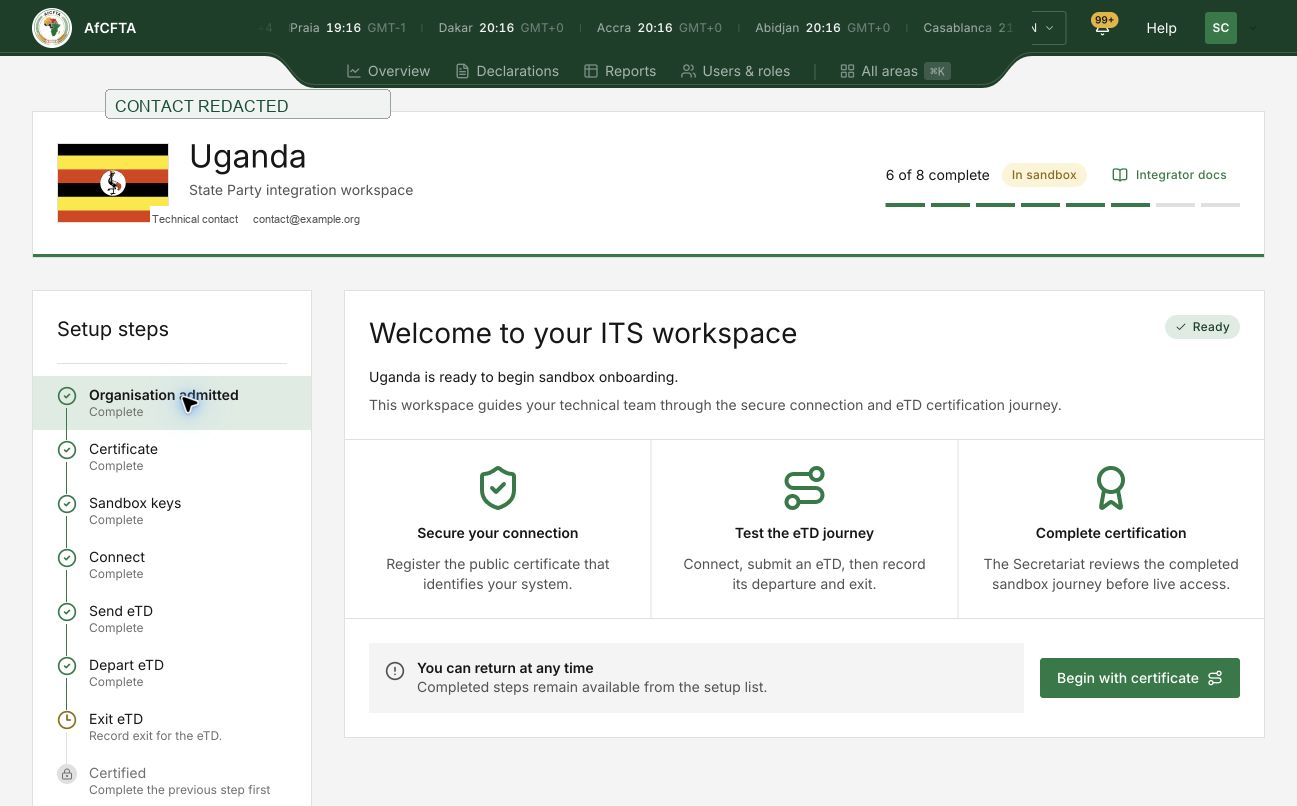
The setup steps down the left are the whole of the next three pages, in order. They stay available once completed.
The administrator and the technical contact each see the parts of ITS their role allows, which is why the two views differ.
If the link has expired or the message is addressed to the wrong person, stop. Do not use it. Go to When no email arrives.
When the person already has an ITS account
Somebody who already works with ITS for another organisation, or in another role, will not get a fresh invitation. Their existing sign-in is linked to the new role instead.
- Check that the person's existing sign-in is linked to this organisation.
- Check the administrator and technical contact assignments one at a time. One can be complete while the other is not.
- Ask the person to sign in and confirm they can see the new organisation.
If one role is incomplete, repair that assignment and check the link again before asking the person to try once more. Creating a second sign-in for the same person to work around a missing invitation leaves two identities that later disagree about who did what.
When no email arrives
Start from the assumption that the account exists and the message is the problem, because that is nearly always the case.
- The administrator writes down what happened: which person, which role, which message was expected, and what the screen said. No links, no passwords.
- The Secretariat confirms the organisation is still
ADMITTEDand both roles are recorded. - The Secretariat repairs the sign-in or the role, and sends a fresh action.
- Both people sign in and confirm what they can see.
If it still does not work, report it with the organisation name, the person's role and the exact message on screen — and nothing else. A password, a reset link, an access token or a private key in that report is a security incident, not a faster fix. Support says where to send it.