Prepare the sandbox connection
Who does this: the technical contact at your organisation.
Your system needs three things before it can call ITS: a certificate registered with ITS, the network your calls come from, and a credential of its own. This page is about obtaining them. Authentication explains how they are then used on every call.
Four items, and where each one lives
These get mixed up constantly, and mixing them up is behind most failed first calls. They are four different things.
| Item | Where it lives | What it does |
|---|---|---|
Public certificate, a .pem file | Registered with ITS, for one environment | Lets the gateway recognise your system. ITS records its fingerprint and expiry date. |
| Private key | On your system only | Signs the proof that you hold the certificate. Never uploaded, never emailed, never pasted anywhere. |
| Client ID and client secret | Wherever your organisation keeps passwords | Identify your organisation at the token URL. The secret is shown once, at creation. |
| Access token | In your system's memory, briefly | Carried on each call. It expires on its own, which is the point of it. |
Losing the client secret does not mean you need a new certificate. They are unrelated, and the fix takes a few minutes: see Keep access working.
Register your certificate
You need one public certificate file for the sandbox, in PEM format, with its private key stored safely on your own system.
- In your workspace, open the Certificate step.
- Choose the public
.pemfile. Upload the public certificate only. - Submit it.
It worked when the panel shows the certificate as Active, with a validity period and a SHA-256 fingerprint. The fingerprint is how ITS recognises your system.
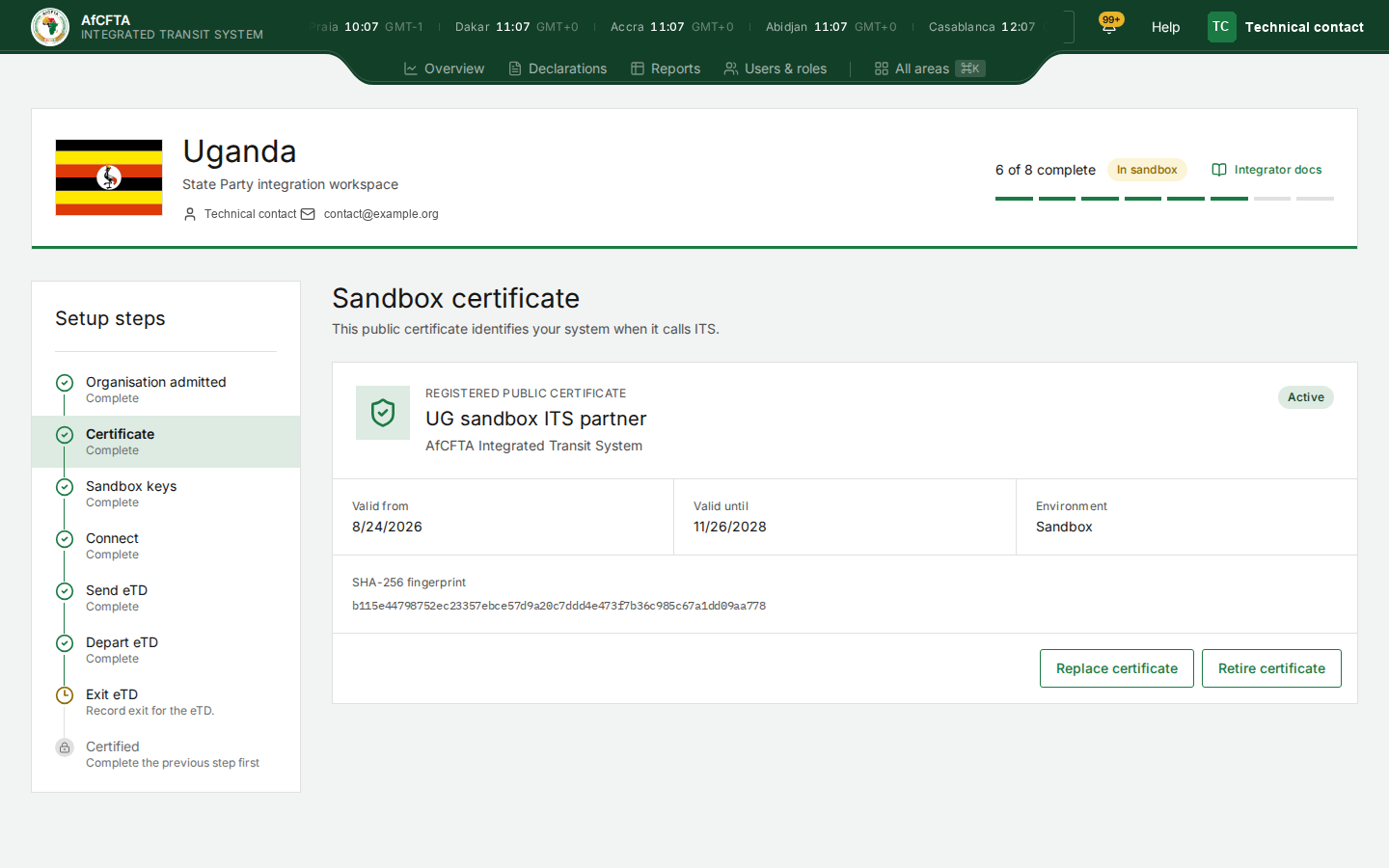
Check Valid until the moment the certificate is accepted, and put that date in a calendar now. A certificate that expires without a replacement stops every call your system makes, with no warning at the moment it happens.
A replacement does not interrupt anything: the current certificate stays active until the new one lands.
When a certificate is refused
There are six reasons, and each has one correct fix.
| Why it was refused | What to do |
|---|---|
| The file was empty | Choose the file again. An empty upload proves nothing either way. |
| It is not a certificate | Export the public certificate properly. Renaming a private-key file does not make it one, and ITS sees what it actually is. |
| It is a private key | Remove it from the upload. If a private key has been sent anywhere at all, treat it as compromised and issue a new pair. |
| It contains several certificates | Send one certificate for this environment. A bundle cannot serve as the single certificate that identifies your system. |
| It is expired, or not yet valid | Use a certificate whose dates cover today, upload it as a replacement, and check the new dates afterwards. |
| It was accepted, but calls still fail | Not a certificate problem. Acceptance and gateway trust are two steps, and the second takes a short while to spread. Wait, then try again before changing anything. |
Declare the network you call from
ITS also records which network your calls will come from. This is a coarse outer filter — your certificate is what actually identifies you — but a call from an undeclared network can be stopped before anything else is checked.
- Find out the public address your system's outbound traffic actually uses. It is often not the address of the server itself.
- Declare it, and confirm it was recorded.
- Ask the Secretariat to confirm the gateway has been updated.
Declaring an address and opening the gateway are two operations. Declaring it records where your calls should come from; it does not by itself change what the gateway accepts. Wait for the second part before treating a refused call as meaningful.
Create your sandbox credential
Do this last, and do it when you are ready to store the secret, because you get one chance to read it.
- Open the Sandbox keys step.
- Create the credential.
- Copy the client secret into your organisation's password store before closing the dialog. ITS cannot show it again, and it is not stored anywhere you can reach.
- Note the client ID. That one stays readable.
It worked when the panel shows Credential ready, with the client ID visible and the secret marked as stored by your team.
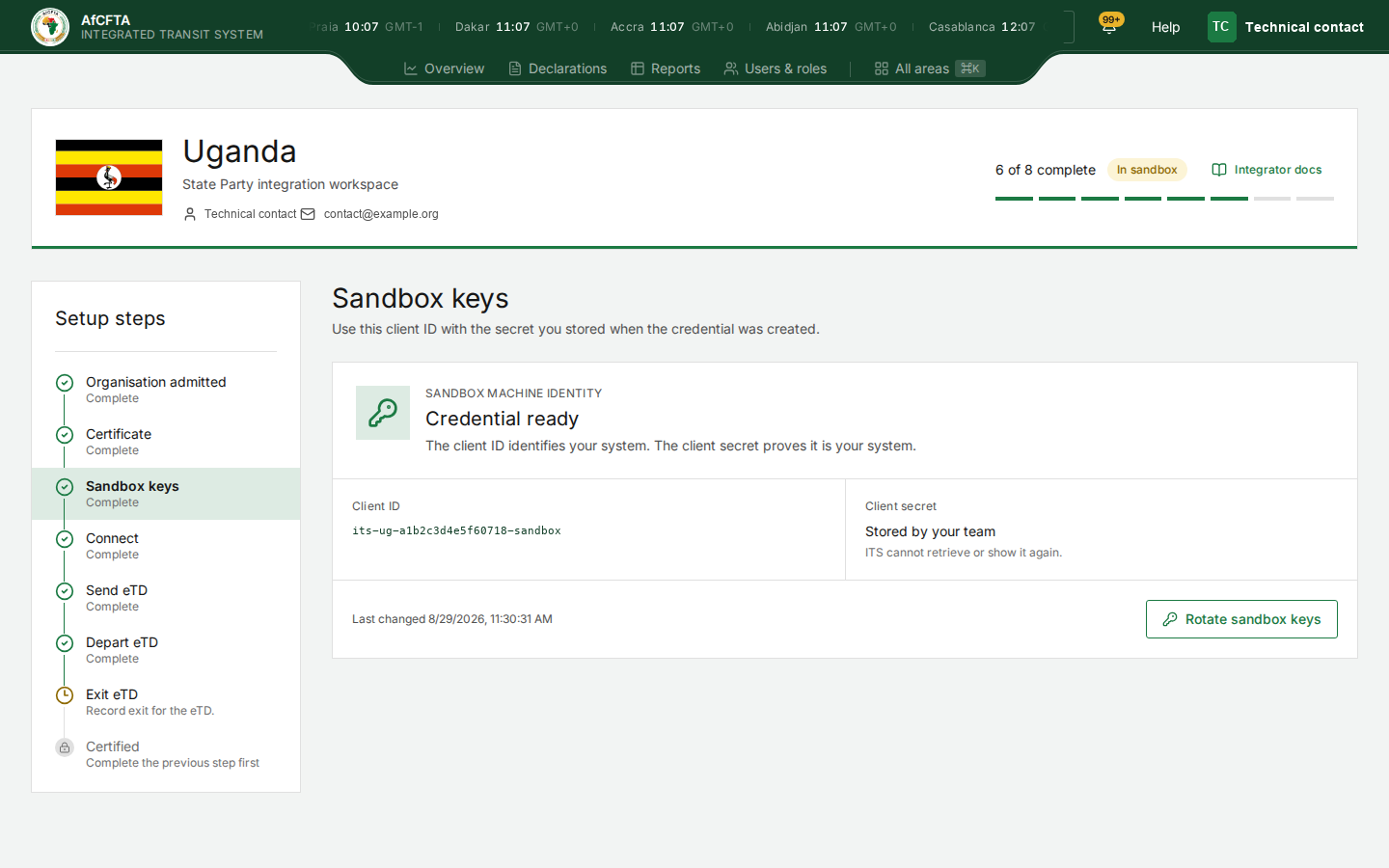
The client secret is never shown here again, in any circumstance. That is what the right-hand column means.
If you closed the dialog without storing the secret, do not create a second credential and do not ask anyone to look it up. Rotate the credential instead: that cancels the old secret and shows you a new one, once. It is in Keep access working.
Sandbox and production never share anything. A sandbox certificate, sandbox credential and sandbox addresses belong together, and so do the production ones. Never copy a production key, certificate, secret or token into your sandbox setup. The separation is what stops practice traffic reaching real trade.
Next
Your system now has everything it needs. Authentication shows how to get a token and make a call with it; then come back to Pass the four checks.